

Download attendance from USB
A Step by Step Guide on How to Download Attendance from USB Flash Disk, Learning how to download attendance from USB flash disk might seem like a small, technical task, but it’s actually the unsung hero of efficient payroll and accurate time management. Imagine your HR manager, Sarah, frantically trying to finalize this month’s payroll. Without the attendance data, everyone’s paycheck is delayed. That’s where you come in, armed with the knowledge of how to download attendance from USB flash disk. It’s a critical process, and we’re breaking it down into an easy, engaging listicle, ensuring you get it right every single time. Let’s dive into this essential analytical guide!
How to Download Attendance from USB Flash Disk
This is the core process—the five steps that turn a blinking machine into actionable data.

Step 1: Preparing Your USB Flash Disk and the Attendance Machine.
Think of this as setting the stage for a smooth data transfer. It’s more than just plugging it in; it’s about compatibility and preparation. Format Check: Ensure your USB flash disk is formatted to a common file system like FAT32. Most attendance devices prefer this older, stable format. A newly formatted drive is often best to avoid file conflicts when you download attendance from USB flash disk.
Locate the USB Port, The attendance machine (the ‘biometric clock’ or ‘time clock’) will have a clearly marked USB port, usually on the side or bottom. Insert Gently: Insert the prepared USB flash disk into the port. The machine should give a visual or auditory cue a beep, or a ‘USB Detected’ message that it’s ready. If you don’t see this, the machine may not be recognizing your drive, which will stop you from being able to download access control Dubai attendance from USB flash disk.

Step 2: Navigating the Device Menu to Find the Data Export Option
This is where the magic happens, and it can vary slightly by brand ABM, ZK Teco, eSSL, etc., but the logic remains the same. Access the Admin Menu Press the Menu or M/OK button on the time clock. You will almost certainly need an administrative password, card, or fingerprint to proceed. This security measure ensures only authorized personnel can download attendance from USB flash disk. Find the Data
Management Section Scroll through the options.
You are typically looking for a menu item like Data Management, USB Manage, Download, or Attendance Data. Select the Export/Download Option Within this section, choose the option that reads Download Attendance Data or Export Data. This is the specific function that executes the process to download attendance from USB flash disk.
Step 3: Setting the Crucial Date Range for Your Attendance Download
Accuracy in data extraction depends entirely on the correct date range. This step prevents you from getting incomplete or redundant data. Specify Start and End Dates: The machine will prompt you to enter the start date and the end date for the attendance records you wish to retrieve. Be Analytical and Precise: Only select the period you need e.g., the last pay cycle. Don’t download the entire history every time; this clogs the USB and slows the process of learning how to download attendance from USB flash disk. Confirm the Selection Once the date range is set, confirm the selection to initiate the data transfer. The machine is now writing the files (usually in a .dat or .xls format) directly onto your drive.
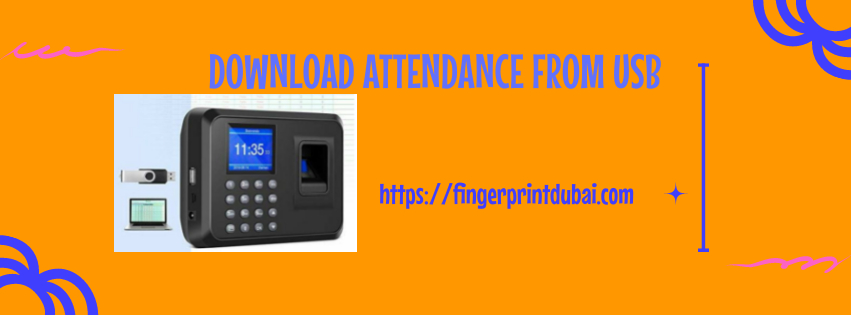
Step 4: Waiting for the Confirmation and Safe Ejection
Patience is key here. Never pull out the USB flash disk during the transfer! Observe the Transfer Progress: A progress bar or a simple Downloading message will appear. The duration depends on the number of employees and the chosen date range. A confirmation message, such as Download Complete or Success, will pop up when the process is finished. This is your green light that you have successfully executed the steps to download attendance from USB flash disk. Safely Remove the Drive: After confirmation, exit the machine’s menu and then physically remove the USB flash disk. Do not just yank it out right after the message appears; ensure the machine is completely idle.
Step 5: Processing the Attendance Data on Your Computer
The data is now on your drive, but it’s not yet payroll ready. Insert the USB into Your PC Plug the drive into your computer. Locate the Files Look for a new folder or file named by date or employee ID. The file will contain all the raw punch in and punch out data. Utilize the Attendance Software: Open the proprietary attendance management software provided by the time clock manufacturer. The software is designed to read the raw files you’ve retrieved by learning how to download attendance from USB flash disk and convert them into readable, structured reports like total hours worked. Generate Reports Import the raw data file into the software and generate your final, clean attendance report for payroll.
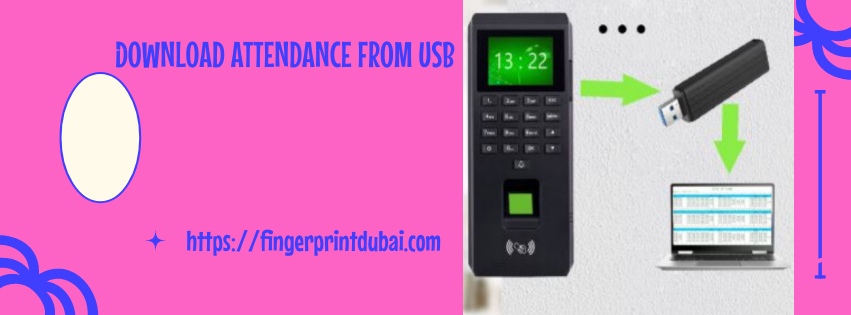
Frequently Asked Questions (FAQs) About How to Download Attendance from USB Flash Disk
Understanding how to download biometric attendance & access control system from USB flash disk often involves overcoming small, common hurdles.
Q: Why is my USB flash disk not being recognized by the time clock?
A: This is usually a formatting issue. The time clock is often a very basic computer, and it typically requires the drive to be formatted to FAT32. If you are using a large, modern drive, it might be formatted as NTFS or exFAT, which the machine can’t read. Reformat your drive to FAT32, and you should be able to download attendance from USB flash disk successfully.
Q: The exported file is a strange .dat file. How do I open it?
A: The .dat file is the raw, encrypted data. You generally cannot open it directly with Excel or a text editor to get a meaningful report. You must import this raw file into the companion attendance software that came with the time clock. The software decrypts and processes this data into a usable report (like an Excel or CSV file) before you can fully process the data you’ve learned how to download attendance from USB flash disk.
Q: I successfully downloaded the attendance, but some employee data is missing. What happened?
A: The most likely causes are either that the employee didn’t physically clock in or out during the selected period, or, critically, that you entered the wrong date range in Step 3. Go back to the machine, check the date range you set, and try again, ensuring your selection covers the employee’s entire work period before you again attempt to download attendance from USB flash disk.
Conclusion Turning Data into Decisions
You’ve now moved beyond merely using a time clock to mastering the crucial data retrieval step. Learning how to download attendance from USB flash disk is a fundamental skill that directly impacts the smooth operation of any business, turning raw clock-in/out times into the reliable data needed for payroll, compliance, and overall employee management. By following these precise steps, you ensure that figures like Sana’s payroll are always accurate and on time.